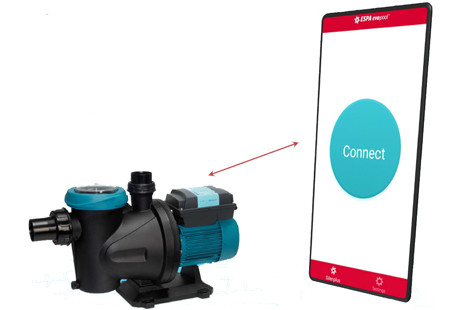
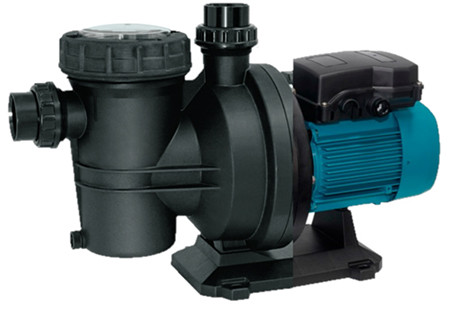
ESPA SilenPlus variable-speed pumps sold on ProPools include built-in Bluetooth, letting you connect from an Android phoneto control the pump, set schedules, and fine-tune operating programs.
ESPA SilenPlus Pumps
Step 1 — Install the Android App
On your Android phone, open Google Play and search for “ESPA evopool”. Then install the app.
Step 2 — Connect to Your Pump (Bluetooth)
- For programming, stand close to the pump pad (Bluetooth works best nearby).
- Turn Bluetooth ON, on your phone.
- Open the ESPA evopool app.
- Tap Connect.
- Select your pump from the list (the connected pump will be highlighted).
If the app prompts for EVOpool Control System pairing…
You’ll see a pairing screen for the EVOpool control system module (mounted on your sand filter / multiport valve).
If you are NOT using the control module: scroll to the bottom and tap Cancel.
Step 3A — Using the EVOpool Control System Module (if installed)
If your system includes the EVOpool Control System module, complete pairing and calibration in the app.This is also the recommended workflow for spring start-up re-pairing.
- Open the app menu (top-right).
- Select Control System calibration reset / configuration reset.
- Follow the app prompts to calibrate the valve positions.
- On the final “Swimming pool features” screen, enter your pool volume and answer the feature questions (heater, salt chlorinator, distance from pool).
Step 3B — Manual Programming (no Control System module)
If you skipped the ControlSystem pairing step, you can still program and control the pump from the app:
- Swimming pool features change — set pool features so the pump can optimize default operation
- Operation settings — customize speeds and run times for each program
- Update firmware — update pump programming to the latest available version
- Remote access / Send report — for factory service use
Step 4 — Program Schedules (Run Times)
- Turn the schedule programming toggle ON.
- Select a day of the week.
- Tap the plus (+) button to add a schedule.
- Choose a start time and end time (the guide references military time).
- Save, then copy the schedule to other days or add multiple schedules per day.
Step 5 — Customize Speeds (Operational Settings)
Use Operation settings to customize pump speed and time by function. Speeds are typically set on a 1 (lowest) to 10 (highest) scale.
- FILTER 1 (Filtration Plus) — high-speed burst + longer low-speed filtration cycle
- BACKWASH — alternates high/low speeds; set ramp time (seconds)
- RINSE / WASTE / RECIRCULATE — set speed for each valve position
- MISC CYCLE (Fixed Speed) — set a fixed speed for manual operation
- Dry-running protection — generally leave at factory settings
Optional — Built-in Timer (Advanced)
SilenPlus pumps include an internal clock/time programmer. Timer programming and maintenance are managed through the app.
Important safety note: If you need to access the internal timer mini-switch, shut off power and wait before opening the pump cover.If you are not comfortable doing this, use a qualified pool professional or electrician.
Helpful PDFs (ProPools Resources)
- EVOpool App Initial Startup & Programming (PDF)
- SilenPlus Quick Start (One-button operation) (PDF)
- SilenPlus / ControlSystem Instruction Manual (PDF)
- SilenPlus Brochure (PDF)
Need help?
If you’re stuck on pairing, schedules, or settings, ProPools support can help you confirm the correct workflow for your exact pump model and control setup. 888-352-7582